


💻 Keeping Your PC Running Smoothly: The Essential Role of Drivers
All IT professionals are aware that a PC’s stability, security, and general performance depends heavily on drivers being kept up to date. Drivers are the crucial link that enables the Windows to properly communicate with hardware elements like your graphics card or Wi-Fi adapter. Think of them as the essential interpreters. You may be dealing with hardware issues, slow system performance, or even significant security flaws if these interpreters are outdated, broken or absent.
This tutorial will walk you through the process of how to update drivers on windows, and solve typical issues, and address other factors to guarantee your systems are operating at peak performance.
Gorelo RMM tools and PSA Software | Start Your Free Trial Now
🤔 Why You Can’t Ignore Driver Updates
The foundation of hardware communication, drivers ensure optimal performance and seamless operation. Any IT professional, or even general user, should prioritize driver maintenance for a number of important reasons:
- Boost System Stability and Reliability: For all essential hardware, including the main storage drive and network adapter, updated drivers are essential to consistent, dependable everyday operations.
- Ensure Hardware Compatibility: The most recent drivers are essential for smooth integration when replacing a component, such as a new GPU or peripheral.
- Squash Bugs and Fix Issues: Driver updates are often released by manufacturers with the express purpose of fixing faults or improving functionality, which is crucial following significant operating system upgrades.
- Shore Up Security: As a crucial line of defence against possible threats, newer drivers frequently include fixes for vulnerabilities discovered in earlier versions.
It is just common sense to incorporate driver updates into routine system maintenance given these important advantages.
🛠️ How to Update Drivers on a PC: Your Step-by-Step Approach
You have a few methods or ways of updating drivers, from using the tools currently integrated into Windows to searching for the latest versions straight from the device manufacturer. Here’s a detailed, step-by-step explanation:
Method 1: How to Update Drivers using Windows Update (Easiest Method)
Windows Update is an easiest way to ensure your drivers are up-to-date. Follow these steps:
- Place this (ms-settings:windowsupdate?winsettingshome) address in windows search and open the Windows Update.
- Click Check for updates or click Download & install all.
Updates will be automatically downloaded and installed.
Method 2: How to Update Drivers with Device Manager
Device Manager provides pin point control over your device drivers. Here’s how to use it:
- Press the Windows ⊞ key and type Device Manager.
- Select Device Manager from the search results.
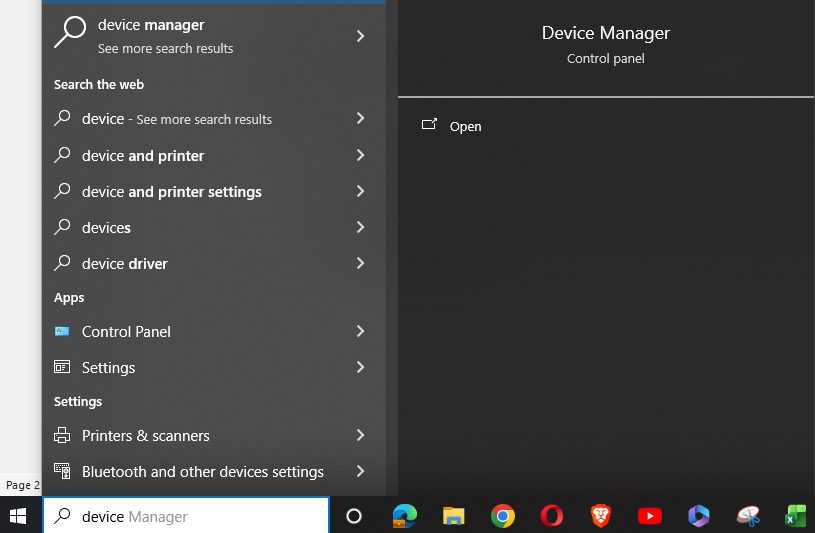
- In Device Manager, right click the device you want to update, and select Update driver.
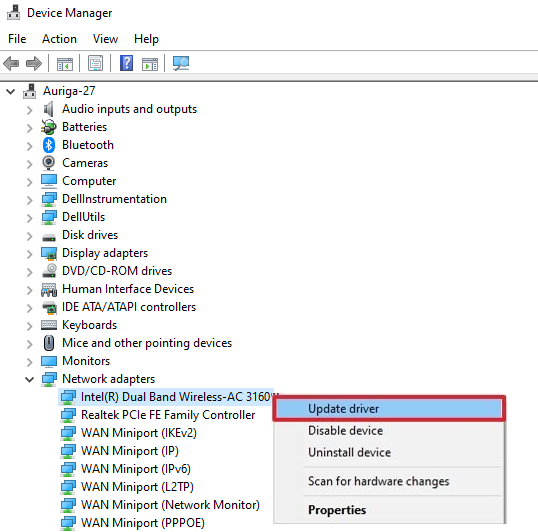
- Click Search automatically for drivers. Windows will automatically search and install the latest driver.
Best Practices for Updating PC Drivers
In addition to updating techniques, every IT professional should adhere to a few crucial guidelines to maintain robust and secure systems:
- Stick to Official Sources: When looking for updates, always start with the official tools offered by the manufacturer of your device (such as Dell SupportAssist or HP Support Assistant). If that doesn’t work, utilize Windows built-in tools (Device Manager and Windows Update). These official channels are significantly more dependable than anything else because they provide drivers that are particularly made for your device.
- Say No to Third-Party Updaters: Those “driver update utilities” you come across online should be treated with extreme caution. Many are categorized as “grayware” because they may present security problems or, worse, sneak in unwanted junk software. Stick to Windows or the manufacturer; it’s just not worth the risk.
- Always Prepare for the Worst: Sometimes unexpected issues are caused by driver updates. Make it a practice to build a system restore point or at the very least make sure you have a reliable rollback strategy before installing any significant driver updates. In this manner, you can swiftly and calmly return to a functional state in the event that something breaks.
Common Signs Your Drivers Need Updating
How do you tell when it’s time to pull over and examine your drivers? A driver may be the primary problem and needs to be updated or fixed if you or your users are facing any of the following signs:
- Annoying System Crashes or Blue Screens: If the computer keeps freezing or displaying the famed “Blue Screen of Death,” out-of-date or corrupt drivers are commonly to blame.
- Hardware Playing Hooky: Is there a problem connecting your printer? Is the Wi-Fi suddenly sporadic? The driver should be checked first when a particular piece of hardware stops functioning properly or at all.
- Performance is Sluggish: A poor or outdated driver may be impeding performance if your system feels considerably slower than usual, particularly while performing applications that need certain hardware (such as games or video editing).
- Odd Errors Popping Up: A malfunctioning communication bridge—that is, a driver problem—is frequently the cause of strange, unexplained system problems or unexpected notifications.
⭐ Power User Tip: Advanced Driver Management
For those who like to have deeper control:
- Force an Immediate Check: You can manually force the update process if you don’t want to wait for Windows to check on its own. To encourage the system to check for updates right away, simply launch the Command Prompt as an administrator and enter the command wuauclt /detectnow.
- The Safety Net: Recall that things can occasionally go awry. Be wise and make a system restore point (found under System Properties) before installing a crucial driver update. Consider it your “undo” button in case the new driver gives you any trouble.
Method 3: Manually Downloading Drivers from the Manufacturer’s Website
Your best option is to download the drivers directly from the official website of the hardware manufacturer if Device Manager or Windows Update don’t work or if you just need the most recent version.
1. Know Your Hardware
First, you need to be precise.
• Make a note of the precise model number for each component (such as a motherboard, network adapter, or graphics card). This information is typically readily available in the Device Manager or by looking through the documentation for your system.
2. Head to the Official Support Site
Next, navigate to the source:
Visit the manufacturer’s official help or download page (for example, if you have an ASUS laptop, visit the ASUS support site; if you have an NVIDIA card, visit the NVIDIA driver downloads).
Find the appropriate driver area using the website’s search tool, then download the most recent version that corresponds to your particular operating system (Windows 10, Windows 11, 64-bit, etc.).
3. Install and Finish Up
Once the file is downloaded:
Launch the executable file you just downloaded, then adhere to the manufacturer’s installation instructions.
If the installer requests it, restart your computer; this is essential for the new driver to function correctly.
💡 Quick Advice for Graphics Cards: You can frequently avoid the manual search for large hardware, such as GPUs. Excellent, automated programs like NVIDIA’s GeForce Experience or AMD’s Adrenalin Software will find, download, and install the most recent drivers for you, greatly simplifying your life.
Method 4: Using the Manufacturer’s Official Driver Update Software
Driver update software may significantly simplify your maintenance schedule, whether you’re in charge of a fleet of PCs or just want a hands-off, automated method.
- Select Official Tools First: Although there are other utilities available, we highly advise giving top priority to the official software supplied by your system’s manufacturer (e.g., Dell Command Update, Lenovo Vantage, etc.). The most dependable method of process automation is with these technologies.
- Scan and Batch Update: After installation, use the utility to check for out-of-date drivers on your machine. The best tools will allow you to choose and update several drivers simultaneously, which will save you a lot of time.
- Always Double-Check Recommendations: It’s advisable to quickly go over the list of recommended updates, even while using official software. Be especially careful if you use non-official manufacturer tools because some third-party drivers may cause instability in comparison to official, tested versions.
⚠️ Critical Note: We can’t emphasize this enough: Steer clear of driver update tools that don’t originate from a reputable, approved source. As previously stated, a lot of generic, unofficial tools are infamous for including undesired “crapware” or creating major compatibility issues. The safest course of action is to trust Windows or the manufacturer.
🛑 Troubleshooting Common Driver Update Issues
Let’s be honest: upgrading drivers can occasionally make problems worse rather than better. These are the most common issues you may encounter, along with easy fixes.
Device Malfunction or Poor Performance After Update
You have two primary choices if a new driver exacerbates the issue—a gadget malfunctions or performs poorly.
- Roll Back Immediately: This is the simplest solution for you. To go back to the previously functional version, open Device Manager, right-click the malfunctioning device, choose Properties > Driver tab, and press Roll Back Driver.
- A Clean Slate: You may have a corrupted file if rolling back doesn’t work. Reinstall the driver after fully uninstalling it from Device Manager and downloading a new copy from the manufacturer’s website.
Driver Update Fails to Install
Sometimes the installer itself just won’t run correctly:
- Try Safe Mode: Try the installation again after starting your computer in Safe Mode. By loading only the absolute minimum of drivers, Safe Mode frequently resolves issues that prevent regular mode installations.
- Verify OS Compatibility: This is very important. Make that the driver version you downloaded is approved for the operating system you are using (for example, you cannot install a Windows 7 driver on Windows 11).
System Crashes or Blue Screen Errors
If a driver update leads to unexpected system instability:
- Update Everything Else: An old, key driver may clash with a single new driver. To avoid compatibility problems, make sure all important component drivers—particularly those for the chipset, GPU, and network adapter—are up to date.
- Use System Restore: Run System Restore to return to a time before the defective driver was installed if the problem still exists.
🌟 Pro Tip: Before beginning any significant driver work, make sure System Restore is turned on. If a bad driver puts a wrench in the works, this is the quickest way to push the “undo” button and return the system to a stable state.
📅 Creating a Driver Update Schedule
Maintenance on a regular basis is essential. Setting a specific driver update schedule is just excellent practice, especially in professional IT settings, rather than waiting for an issue to arise.
Think about checking for non-essential hardware drivers on a quarterly basis. However, more frequent inspections are frequently necessary to guarantee optimal performance and security for crucial components like your network card and graphics card.
Implementing Proactive Updates for Seamless IT Management
Maintaining system performance, ensuring compatibility with new software, and guarding against security flaws all depend on knowing how to update drivers on a computer. You may keep your hardware operating effectively and avoid those possible system dangers by implementing these strategies and incorporating these best practices into your daily routine.
Gorelo RMM Tools and PSA Software | Book Your Demo Today