

Fully Qualified Domain Name
The full, unambiguous address of a device or service on the internet that indicates its precise position inside the Domain Name System (DNS) hierarchy is called a Fully Qualified Domain Name (FQDN). The hostname, domain name, and top-level domain (TLD), such www.example.com, are all included. The root zone is indicated by the trailing dot at the end of FQDNs, such as www.example.com.
Gorelo RMM Software and PSA | Start Your Free Trial Now
Key Components of an FQDN
The hierarchy of a FQDN is as follows: read from the most particular to the most general:
- Hostname: Identifies a particular computer, like www, mail, or ftp.
- Domain Name: Represents the company (e.g., Amazon, Google).
- Top-Level Domain (TLD): The extension, like.net,.org, or.com.
- Trailing Dot (Root): Although browsers skip it for simplicity, the root is indicated by a. at the end, which is technically necessary in DNS configuration files.
Some Examples of FQDNs
- www.example.com.
- mail.company.org.
- api.service.example.co.uk.
- server1.department.internal.net.
Purpose and Usage of FQDNs
- DNS Resolution: Converts addresses that can be read by humans into IP addresses.
- Network Identification: Enables a server or service on a network or the internet to be uniquely identified.
- SSL/TLS Certificates: Necessary to protect web traffic.
- Configuration: Used to guarantee correct routing in network, email, and web server configuration.
Differences from Other Terms
- FQDN vs. Hostname: An FQDN is the fully qualified version (server1.example.com), but a hostname is merely the local name (server1, for example).
- FQDN vs. URL: Although a FQDN is a component of a URL (Uniform Resource Locator), it excludes certain file paths and the protocol (such as https://).
Technical Constraints of FQDNs
- A maximum of 255 bytes in length.
- The maximum size for each label (section) is 63 bytes.
- Uses hyphens and alphanumeric characters; underscores are typically not allowed in official, public domain names.
Why and when to use an FQDN
Using a FQDN is either a best practice or a strict requirement in the following typical situations:
Connecting to a remote host
Your DNS server will probably produce an error if you attempt to ping a remote server using only a nickname, such as example rather than example.com, as it won’t know where to search. The DNS server can resolve the name to the right IP address if the FQDN is used. This is particularly important if you’re attempting to connect to a server via a different service provider or outside of your local network.
Migrating to a new server
It can be difficult to move your services to a new cloud provider or physical server. The move goes considerably more smoothly, though, if your setups use a FQDN instead of a hard-coded IP address. You may avoid needless downtime by simply updating your DNS records to point to the new IP. Your users (and apps) won’t even notice the switch.
Branding potential
An FQDN not only routes traffic but also communicates your identity to the world. Every time a visitor types your brand’s name into their browser, a clear, well-structured domain name serves to reinforce its identity and professional appearance.
Search engine optimization (SEO)
Clarity is preferred by search engines. A properly established FQDN facilitates better site indexation by browsers and search crawlers, which can assist move your SEO rankings in the right way.
Accessing domain services
The complete address is necessary for some protocols, such as FTP or email, to work. You must enter the precise FQDN of your mail server to connect, for example, if you need to sync your work email with a mobile app like Gmail or Apple Mail.
How to find an FQDN
These names aren’t unique to websites; they’re allocated to every PC and server. It just takes a few clicks or a short command to locate yours, whether you’re using a desktop computer or a laptop.
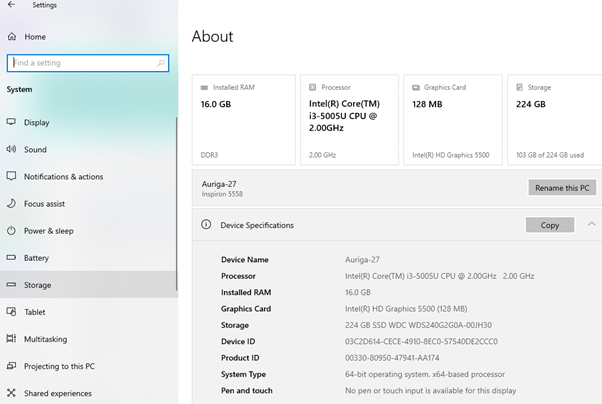
Finding the FQDN for Windows 11
On a Windows 11 machine, follow these steps:
- Open your Control Panel.
- Open System and Security, then click on System.
- Look for the link or section which states see the name of this computer.
- Your FQDN will be listed in the Full device name under the Device specifications header.
Finding the FQDN for macOS
For macOS users, the process is also straightforward:
- Open Apple menu, select System Settings, then click General in the sidebar.
- Select About on right side (scroll down a bit).
- FQDN will be displayed right at the top of the screen.
Pro Tip: You may locate your FQDN in a matter of seconds if you would rather use the command line. Launch the Terminal on macOS and enter hostname -f. To achieve the same outcome if you’re using Linux, open your terminal and type hostname -A (note that the “A” needs to be capitalized).
Gorelo RMM Software and Ticketing System | Book Your Demo Today